Monday, 18 February 2019

How to Make The Most of Siri 2019


Are you aware that Apple's digital assistance - Siri, has evolved to become one of the most useful and powerful tools on every iOS device? Most iPhone users who are now enjoying the awesomeness of this application are now familiar with many of the different ways through which they can use Siri to make their day-to-day endeavors easier.

On this article titled "How to make the most of Siri", we shall be enlightening you on how to master Siri in order to use it in sending emails, getting direction, look things up, etc. Here is how to make the most of Siri.


Practice makes perfect: If you are new to using Siri, she may not respond efficiently the first couple of times you may command her to carry out some instructions, but do not relent to using your iPhone manually, because over time, you will master the use of Siri effectively.


Set up contacts: Setting up your contacts requires you to educate Siri on who is important in your life. You can begin by telling Siri "Jennifer is my wife," "Edward is my boss" or "Ben is my son." Hence, whenever you ask Siri to call your boss, she will search through your contacts and put a call to Edward.


Utilize your calendar: You can schedule or reschedule multiple appointments and meetings through Siri; all that it requires is a clear instruction and adding much information to every command. Siri can ask you for clarifications if there is confusion due to ambiguity or conflicting schedules.


Set up location-aware reminders: Adding locations to your reminder will help you to instruct Siri properly based on location, but you will need to add location to your reminders before this can work. Hence, whenever you get to that location, Siri will pop up a reminder for you.


Set timers: Timer is one of the best ways to keep your eye on time while doing your home chores, cooking, reading, baking, or preparing to visit a friend. You will have to set your timer by instructing Siri to set timer for a specific amount of time.

Using Siri over time is the best way of getting used to its different features; it also allows Siri to master your nuances and accent in your voice in order to assist you better. However, working with Siri is very easy and knowing what Siri can do would help you to know how to instruct it or use such features or functions. Here are some of the function and features of Siri, which you can utilize to make your work easier with Siri:


Perform Calculations: As a sales rep, you may not need to open your iPhone calculator in order to multiply, deduct, add or divide numbers; all you need to do is to ask Siri "What is the product of 1,490 multiplied by 22?" and the answer will be ready for you in the twinkle of an eye.


Check appointments: "What are my appointments today?" should be your first question to Siri when you wake up on a workday. You can also ask for your events for the month of January, or appointments for the coming week. At your request, Siri will list them out for you.


Lookup things: Looking up things on the internet has been made easy with Siri, you may come across an application like iMyfone Umate Pro, and you may want to know more about this application, you can ask Siri "What is iMyfone Umate Pro." You can also lookup words on the dictionary when reading a novel or text, you can lookup information like "How big is a blue whale?" "How many moons does planet Jupiter have?"


Search apps: You can use Siri to search through iPhone apps like notes, calendar entries, emails, or messages. You can send a command like "Siri, search notes for salad recipes" or "Find the email about Xmas holidays."


Operate Alarms: Turning on or off your alarm is possible with Siri if you give commands like "Turn on (or off) alarm." You can also set a specific time for your alarm by saying "Set an alarm for 6:30pm."


Play and pause music: With Siri, there is no need to start looking up through your music library for playlists or specific tracks. All that is needed to fetch out any playlist or track is a simple instruction such as "Play Adele," or "Play Lady Gaga," or "Play Beyonce." You can also ask Siri to pause or stop the music.


Set Reminder: Siri reminders can be activated by time and location. You can give Siri instructions like "Remind me to continue my assignment by 5pm," or "Remind me to check my mail when I get home."


8. Get directions: It takes only simple questions to get directions and specific locations using Siri. You can ask questions such as "Siri, how do I get to *name the address*?" "Siri, show me my current location on the map?" "Siri, show Central Park on the map."

In all, having known "How to make the most out of Siri," you can now have more fun while working on any task using Siri.Sponsor ads:

Gihosoft Free iPhone Data Recovery:iphonerecovery.com

Free iPhone Data Recovery Software for Windows/Mac

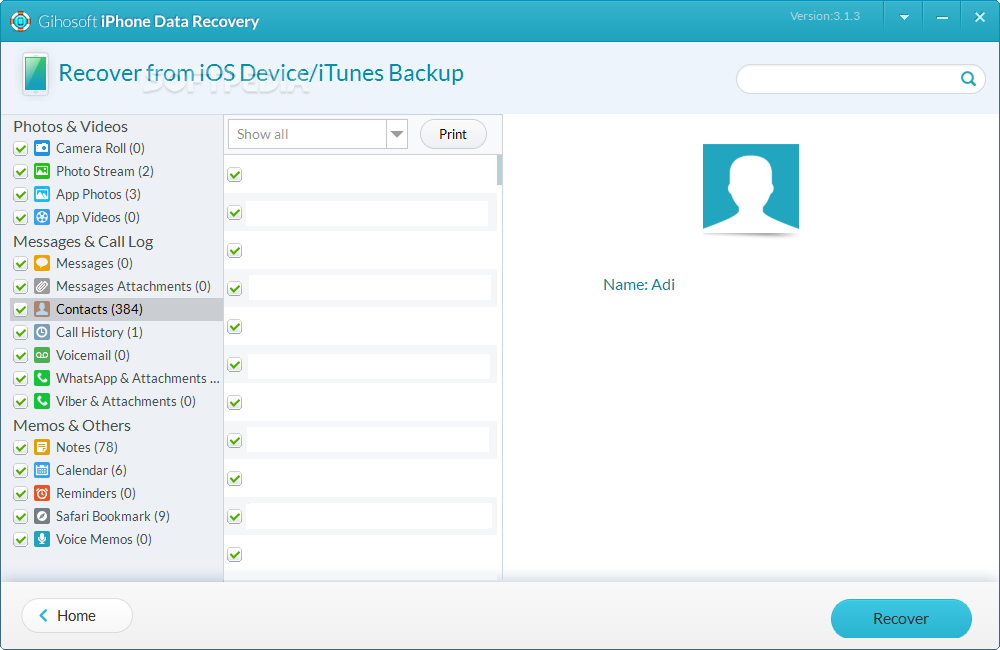
Recover up to 12+ types of files, including contacts, SMS, photos, WhatsApp, Viber, notes, etc.

Restore lost data from iOS devices directly or from iTunes and iCloud backup

Recover iPhone data lost due to iOS upgrade/jailbreak, accidental deletion, device lost or broken

Support all the latest iPhone, iPad and iPod Touch

Both Free and Pro version.

If you lost data after you updated to a new iPhone, you can always use Gihosoft iPhone Data Recovery to get the data back from the old iPhone or backup.

Top 10 Best FRP Bypass Tools to Bypass Google Account on Android Device 2019

Worth reading:download youtube 1080p

If you use android phones, please choose Gihosoft Android Data Recovery

Jihosoft Android Data Recovery: the best Android Data Recovery software for Windows and Mac to recover deleted contacts, messages, photos, videos, WhatsApp and etc from Android

How to Get Data Off A Broken iPhone?


2 Using iTunes

This method is only applicable if your iPhone is unlocked. This is because iTunes will ask for the password before you can erase everything in your iPhone. Below are the steps that you can use to erase data.

Step 1: Launch iTunes and connect your phone to the computer.

Step 2: Once it asks for the password or prompts you to Trust This Computer, agree accordingly and follow the steps.

Step 3: Next, select your device from iTunes.

Step 4: Click “Restore iPhone” and then click “Restore” to confirm. All your data is erased.


It is to be noted that getting data off broken iPhone using iMyFone makes your data completely unrecoverable; while files deleted by iTunes can still be recovered.
Learn to Protect Your Privacy

iPhone users always need to be cautious regarding their privacy. It is a good idea to keep deleting files that you think are private or sensitive. However, as you may already know, deleting as such is far from safe.

This is because the data can still be recovered using data recovery tools and other techniques. Therefore, it is important to completely erase such deleted data. iMyFone’s “Erase Deleted Data” is meant to do just that.


The feature will let you preview the files that you have previously deleted and will let you select the ones that you want to remove. It will completely overwrite the files making them 100% unrecoverable.

Sponsor ads:

Gihosoft Free iPhone Data Recovery:https://www.gihosoft.com/iphone-data-recovery-free.html

Gihosoft iPhone Data Recovery Free

Free iPhone Data Recovery Software for Windows/Mac

Recover up to 12+ types of files, including contacts, SMS, photos, WhatsApp, Viber, notes, etc.

Restore lost data from iOS devices directly or from iTunes and iCloud backup

Recover iPhone data lost due to iOS upgrade/jailbreak, accidental deletion, device lost or broken

Support all the latest iPhone, iPad and iPod Touch

Both Free and Pro version.

If you lost data after you updated to a new iPhone, you can always use Gihosoft iPhone Data Recovery to get the data back from the old iPhone or backup.You may also like: iphonerecovery.com

If you use android phones, please choose Gihosoft Android Data Recovery.

With Gihosoft Android Data Recovery, no longer afraid of data loss!

Must read:Youtube video downloader for pc

Gihosoft RePicvid Free Photo Recovery Software provides a free photo recovery software for windows to help users recover the deleted or lost photo for free.

Jihosoft Android Data Recovery: the best Android Data Recovery software for Windows and Mac to recover deleted contacts, messages, photos, videos, WhatsApp and etc from Android devices.Tips:How to transfer messages from iPhone to iPhone


jihosoft Free iPhone Data Recovery

Thursday, 14 February 2019

How to Recover Voice Memos 2019


How to Recover Voice Memos from iCloud/iTunes Backup

If you are lucky to have backed up voice memos in iTunes/iCloud, things will become easier. All you have to do to get them back is simply restore the device. To do this, you can either use the official way to restore voice memos to iPhone, or use iMyFone D-Back mentioned above. Each method stands out for reasons, and in the following part, we will discuss in detail.
2.1. Get Missing Voice Memos Back by Restoring the Device

First, make sure you have backed up voice memos with iCloud/iTunes, then follow these simple steps to do it.
iTunes Restore Voice Memos:

Step 1: Launch iTunes on your computer and then connect the device using USB cables.

Step 2. Select device when it appears in iTunes and then select "Restore Backup" in iTunes.

Step 3. Choose the most relevant backup and click "Restore" to finish.


iCloud Restore Voice Memos:

Step 1. Go to Settings > General > Reset > Erase All Content and Settings.

Step 2. Enter the passcode and confirm to erase iPhone.

Step 3. Then select Restore from iCloud backup. Login your iCloud account and select the backup file. Wait for the whole restore process finishes.


But you may noticed that both iTunes and iCloud will erase the current data on your iPhone and replace it with the backup files. If you don't want to lose the data and just need to get a few voice memos back, you might as well employ the services with the iPhone backup viewing tool iMyFone D-Back.Sponsor ads:Free Antivirus for iPhone

Must Read:If you lost data after you updated to a new iPhone, you can always use Gihosoft iPhone Data Recovery to get the data back from the old iPhone or backup.

Gihosoft Free iPhone Data Recovery:iphonerecovery.com

If you use android phones, please choose Gihosoft Android Data Recovery

Thursday, 16 August 2018

Top 5 IMEI Blacklist Checker Tools/Websites 2019

Top 5 IMEI Blacklist Checker Tools/Websites


To check if your phone’s IMEI is blacklisted, you’ll need to log on to any of the following websites and check the status of your iPhone IMEI.
#1: T-Mobile


T-Mobile in cooperation with government agencies, and other national and international carriers have joined together to help eliminate the use of stolen devices across the world. IMEI status checks with T-Mobile is very efficient and easy to accomplish. T-Mobile can also help to remove your iPhone’s IMEI from blacklist if it was wrongly reported as lost or stolen.
#2: IMEI.info


You’re only required to take just 3 steps to check if your second-hand iPhone’s IMEI has been blacklisted on this website. Just go to the Home page, enter your iPhone IMEI, and click “Check”. The result will show you if your iPhone is blacklisted or clean.
#3: IMEI24


If you want to check the status of your IMEI number from Great Britain, USA, Canada, Australia, Ireland, Brazil, Venezuela, Chile, and other countries, then using IMEI24 won’t be a bad idea.Must read:Gihosoft Free iPhone Data Recovery:https://www.gihosoft.com/iphone-data-recovery-free.html
#4: Orchard IMEI Checker


This online based software allows you to check if your IMEI number has been blacklisted. It’s completely free to use, and offers some other services like unlocking your locked iPhone.
#5: IMEI Changer


This free web-based tool is one of the easiest ways to check the status of your iPhone whether reported to be lost or stolen. It’s also a fast service as it takes but a few minutes to display search results. It can also help you to change your blacklisted IMEI number.


We’ve listed some of the tools and website through which you can check your iPhone’s IMEI status. But we would at this point like to mention that “all IMEI blacklist checkers websites or tools can only provide information on iPhones or smartphones that have been reported or blocked before the time of your inquiry”. Hence, if your iPhone was stolen but yet to be reported, then the result obtained from this website would not be termed accurate.
For now, check:Free iTunes/iPhone Backup Extractor for iPhone, iPad
Jihosoft iTunes Backup Extractor is a powerful tool to recover and extract important data from iPhone, iPad & iPod touch backup on Windows or Mac.

Sunday, 12 August 2018

How to Fix iTunes Backup Corrupt Issue


How to Fix iTunes Backup Corrupt Issue 2019

Fix iTunes Backup Corrupt Issue

2. Delete the Corrupt iTunes Backup and Backup Again Via iTunes
2.1 Deleting the Corrupt iTunes Backup

You can delete your corrupted or incompatible backup via iTunes interface. The process to do this is straightforward.

Follow these steps:

Step 1: Launch iTunes on your Windows PC or Mac.

Step 2: Navigate to Edit > Preferences if you are on Windows PC. If you are on Mac, then use the upper left corner of your Mac to access these options.

Step 3: Once in the Preferences section, navigate to Select Devices and then find your iDevice from the provided list of backups.

Step 4: After finding and selecting your device, select the corrupt or incompatible backup and then click the Delete Backup button. Confirm your action by clicking the Delete button when it is prompted.


2.2 Backing Up iPhone Again

Backing up your iPhone via iTunes is just a simple as deleting a backup. You will need to connect your iPhone to computer first of course.

Follow these steps:

Step 1: Launch iTunes and connect your iPhone to your computer via lightning cable.

Step 2: Select your connected iPhone’s name from iTunes. It will be shown on the top right corner of the interface.

Step 3: Now click ‘This computer’ option and then click on ‘Back Up Now’ option available in the Backups column. The backup process will begin.

You may like:

free photo recovery software

If you lost videos from iOS Camerall Roll which are nowhere to download again, you can use Gihosoft iPhone Data Recovery to get back deleted videos from iOS device including iPhone, iPad and iPod Touch.Please check jihosoft iphone data recovery

How to Play iMessage Games in iOS 11.3/11.2/11


How to Play iMessage Games in iOS 11.3/11.2/11
Part 1. Install iMessages games

Here are the steps to follow:


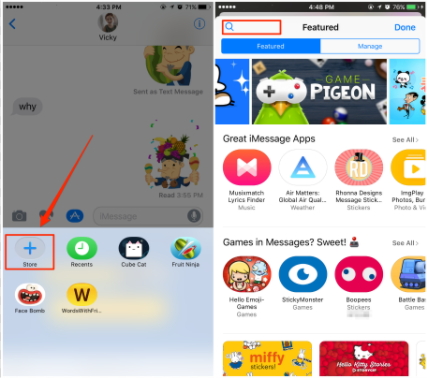
Enter the iMessages app store.


When you look for target games, you will find the text ‘only for iMessages’ written right below the icon of the app.


You need to click on the ‘Get’ icon and the app will be downloaded.


When downloaded, you will find the app installed in the Store icon in your iMessages conversation box.


Part 2. Play games on iMessages


First of all decide who you want to play the game with and open their iMessage dialog box.


Now tap on the app store icon in the dialog box and then tap the four gray dots which will show the apps which are present on your device.


Now choose the game you want to play.


When you have selected the game, a game invitation will be made and you can send it to your friend who in turn can download it on their device.


You both can now start playing the game.


Part 3. Top 10 iMessage Games in iOS 11.3

Here are 10 of the best games you can possibly enjoy when playing in iMessages.


Quiktionary: Guess a four lettered word based on clues.
Must read:Gihosoft Free iPhone Data Recovery:https://www.gihosoft.com/iphone-data-recovery-free.html

Words with friends: Simply make a word with the letters and score higher.


Mr. Putt: This is for all golf lovers out there. Quite realistic and very very addictive.


Msg me word guess: Very much like hangman, it is addicting to pay.


Four in a row: A classic board game, this will have your hooked for long.


Game pigeon: Very much like solitaire and minesweeper, these are great options for 2 player games.


Cobi hoops: You need to score as many baskets as you can in a 30 second window.


Wordle: Guess the word: More like a jumble, you need to guess the word from the messed up letters.


Memorado: Fun game to improve concentration and memory.


Fast thumbs: Show off your speed typing skills.
Part 4. How to uninstall iMessages games

If you are done playing the game and want to know how to uninstall it, here are the steps to do so.


You need to head to the iMessages keyboard app pane.


Now click and hold the game icon until you find the X icon.


Click on the X icon to uninstall the game.

You also have an alternate way wherein you can go to the game screen and delete the app from the home screen by pressing and holding it until it begins to wiggle and the X icon appears.
Photo recovery free photo recovery 100% free to restore deleted/formatted/lost pictures in just three steps Photo recovery
Gihosoft Free Android Data Recovery can help you easily recover lost data such as photos, videos, contacts, text messages, WhatsApp & Viber chats from Google Pixel/XL or other Android phones effortlessly.
Any app suggestions or topic recommendations are appreciated in the comments down below.


If you lost videos from iOS Camerall Roll which are nowhere to download again, you can use Gihosoft iPhone Data Recovery to get back deleted videos from iOS device including iPhone, iPad and iPod Touch.

Gihosoft Free Android Data Recovery can help you easily recover lost data such as photos, videos, contacts, text messages, WhatsApp & Viber chats from Google Pixel/XL or other Android phones effortlessly.

Jihosoft Android Data Recovery: the best Android Data Recovery software for Windows and Mac to recover deleted contacts, messages, photos, videos, WhatsApp and etc from Android devices.

Any app suggestions or topic recommendations are appreciated in the comments down below.


So, with these details, it should now be fairly easy for you to enjoy the best games on the messaging app. We are sure that you will have a great time playing these with your friends and even try defeating them too.

Sunday, 10 June 2018

Fix WhatsApp Update Stuck on iPhone/iPad

Fix WhatsApp Update Stuck on iPhone/iPad

Restart Your iPhone/iPad
Restart iPhone X


Hold Side button and volume button.


Drag the slider and turn off the phone.


Press the side button to start the phone.


Restart iPhone 8 (or older)/iPad


Hold the side or top button.


Drag the slider and turn off the device.


Press top or side button.


2Update WhatsApp in Apple App Store


Go to App Store.


Tap on the Updates option (at the bottom).


Locate WhatsApp.


Tap Update.


3Check Your iPhone Storage


Go to Settings and select General.


Select Storage & iCloud Usage.


Select Manage Storage.


Select the malfunctioning app and delete it.


4Close Other Running Apps


Double press the home button.


Remove the apps (all of them) runs in the background.


5Turn Airplane Mode on and off


Go to settings.


Tap on the toggle button closer to “Airplane Mode”.


Repeat the same to turn off the Airplane Mode.


6Toggle to Turn Cellular Data on


Go to settings.


Tap on Cellular button and then tap on the toggle switch next to Cellular Data option.


7Turn Wi-Fi off and on


Go to settings.


Tap Wi-Fi.


Turn it grey or green simply by tapping on it.


8Try Another Wi-Fi Hotspot


Go to settings and Tap on Wi-Fi.


Turn Wi-Fi on.


Select a different Wi-Fi Hotspot name and get connected.


9Reset Network Settings Must read:Gihosoft Free iPhone Data Recovery:https://www.gihosoft.com/iphone-data-recovery-free.html


Go to Settings and tap General.


Tap on Reset and go to Reset Network settings.


Enter the password (if applicable).


Confirm reset network settings.


2: Back up iPhone/iPad before Fixing WhatsApp Update Stuck


When you experience some unexpected things about WhatsApp, the first thing you should do is to get a backup before fixing it.


Why Backup Your iPhone/iPad before Fixing?


Backing up WhatsApp Data via iTunes


Backing up WhatsApp Data via iCloud


Backing up WhatsApp Data via iPhone Data Exporter
Why Backup Your iPhone/iPad before Fixing?


The reason is that WhatsApp tends to lose some of the files during the fixing process. For instance, WhatsApp messages, contacts, photos, notes, videos etc. can get erased during this process. We know some of these files are exceptionally important to you. Therefore, we strongly recommend you to back up your iOS device in advance.
Backing up WhatsApp Data via iTunes


One of the easiest ways to create a backup of your WhatsApp data is using iTunes. Let’s take a look at the pros and cons of iTunes.


Pros of iTunes Backup


You don’t need to use any third-party software tool


Even the large files can be backed up using iTunes without paying
Cons of iTunes Backup


You cannot view the data inside this kind of backup


You must have access to a computer and connect the iOS device to it to backup it
Backing up WhatsApp Data via iCloud


Another way to backup your WhatsApp-related data is using iCloud. Here’s a list of pros and cons associated with iCloud.


Pros of iCloud Backup


iCloud can back up your device automatically


It features wireless backup process


You are allowed to backup the data without a computer
Cons of iCloud Backup


iCloud requires an internet connection


Not all your device data will be backed up


You cannot view all the content in your iCloud backup


You get a limited free space (up to 5GB)


Do you like this story?


Sponsor Ads:

Image result for gihosoft iphone
Gihosoft iPhone Data Recovery is a professional iPhone Data Recovery software to get back all your lost text message, photo, video, call history, note, contact and more from iPhone/iPad/iPod Touch. It offers a full solution to recover your lost data in different tough situations. Besides recovering data directly from iPhone, iPad and iPod touch, it also allows you to recover data from iCloud and iTunes backup files.

How to Back up iPhone iOS 12 to Laptop Using iTunes

How to Back up iPhone iOS 12 to Laptop Using iTunes iTunes is the default program that was made by Apple to be used for backing up all files...